

How to Automate Your Business Growth with SMS Zapier and Zoho Integrations
Home How to Automate Your Business Growth with SMS Zapier and Zoho Integrations In 2026, the difference between a lead and a loyal customer is often how fast you respond. Manual data entry and individual texting are no longer sustainable for growing Australian businesses. To stay ahead, you need a system where your tools talk to each other. By leveraging SMS Zapier workflows and dedicated SMS for Zoho integrations, you can turn your CRM into a high-speed communication hub. Here is how these automations can transform your daily operations. 1. The Power of SMS Zapier: Connect 6,000+ Apps Zapier is the “glue” of the internet, and Guni’s SMS Zapier integration allows you to connect your text messaging to almost any software you use. Whether it’s a new lead from Facebook Ads, a booking on Calendly, or a new row in Google Sheets, you can trigger an instant SMS without lifting a finger. Lead Nurturing: Send an immediate “Thank you” text the second someone fills out a website form. Ecommerce Updates: Automatically alert customers via SMS when their WooCommerce or Shopify order is shipped. Internal Alerts: Notify your sales team via SMS the moment a high-value lead enters your system. 2. Streamline Your CRM with SMS for Zoho If your business runs on Zoho, a native SMS for Zoho integration is a game-changer. Instead of switching between tabs to send a message, Guni allows you to manage all customer conversations directly within the Zoho CRM dashboard. Two-Way Texting: View chat histories and reply to customer queries without leaving the lead or contact module. Bulk SMS Campaigns: Select a list of contacts in Zoho and blast a personalized marketing campaign in seconds. Workflow Automation: Set up Zoho “Blueprints” or workflows that send automated SMS reminders for overdue invoices or upcoming appointments. 3. Local Support, Global Reliability When you integrate Guni with Zapier or Zoho, you aren’t just getting a technical connection—you’re getting Australian-based reliability. ISO-Certified Security: Your data remains secure and compliant with Australian standards. Real-Time Analytics: Track delivery rates and click-throughs directly within your integrated platforms. 24/7 Expert Help: Our local team is here to help you set up your first “Zap” or Zoho extension. Get Started Today Don’t let manual processes slow you down. Whether you want to explore the endless possibilities of SMS Zapier or deep-dive into SMS for Zoho, Guni has the tools to make it happen. Visit Guni SMS to start your free trial and automate your way to success! Sign Up Share Via Facebook Instagram Twitter Whatsapp Youtube Linkedin
SMS for Zoho CRM: Send Bulk & Quick Texts Directly from Zoho – GuniSMS Guide
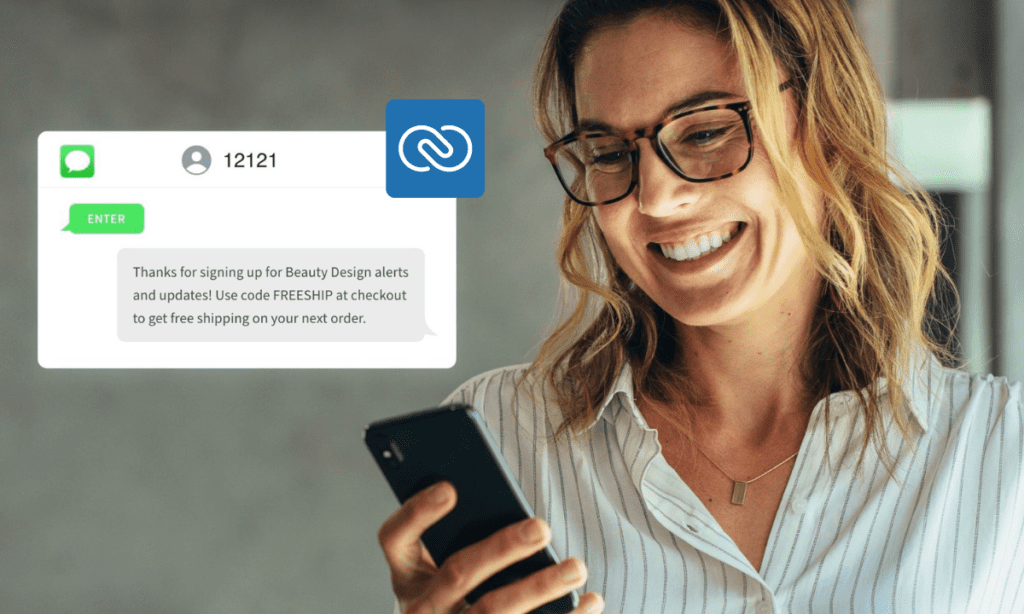
Home SMS for Zoho CRM: Send Bulk & Quick Texts Directly from Zoho – GuniSMS Guide In today’s fast-paced business world, staying connected with leads, customers, and contacts is essential for growth. SMS for Zoho offers one of the most effective ways to boost engagement — with open rates often exceeding 98% and instant delivery. Australian businesses especially benefit from a reliable, locally compliant SMS gateway that integrates seamlessly with their CRM tools. Enter GuniSMS — Australia’s trusted SMS gateway provider, offering direct, powerful integration with Zoho CRM. Whether you’re sending quick one-on-one texts or launching large-scale bulk campaigns, GuniSMS lets you do it all without ever leaving your Zoho dashboard. Why Choose SMS for Zoho CRM? Text messaging remains one of the highest-engagement channels available: Near-instant read rates Personal and direct communication Perfect for appointment reminders, promotions, order updates, feedback requests, and support follow-ups Compliant with Australian regulations (ACMA guidelines) when using a local provider However, not all SMS gateways are created equal. Many require switching between platforms, manual exports, or complex setups. GuniSMS changes that with its native Zoho integration — built specifically for Australian businesses. Introducing GuniSMS – The Reliable Australian SMS Gateway for Zoho GuniSMS is a fully Australian-hosted SMS gateway with direct telco connections, ensuring fast delivery, high success rates, and complete data security on local servers. Trusted by over 2,000 Australian businesses, it offers: Bulk SMS campaigns Two-way messaging (send & receive replies) MMS support for richer content Templates, scheduling, and opt-out management Real-time delivery reports and webhooks Unlimited incoming messages (no extra fees) 24/7 local Australian support Transparent Pay & Go pricing Best of all? GuniSMS integrates directly with Zoho CRM, allowing you to send SMS for Zoho Leads and Contacts effortlessly. How to Set Up SMS for Zoho CRM with GuniSMS (Step-by-Step Guide) Getting started is simple and takes just minutes: Sign up for GuniSMS Head to https://gunisms.com.au/ and create your account. Enjoy a sandbox/test environment to experiment risk-free. Install the GuniSMS App in Zoho Marketplace Log in to your Zoho CRM account. Visit the official integration link: https://marketplace.zoho.com/app/crm/guni-sms-for-zoho-crm Click Install and follow the prompts to connect (you’ll need your GuniSMS API credentials). Connect & Authorize Enter your GuniSMS API key/token (generate it securely from your GuniSMS dashboard). Authorize the connection — all sent and received messages will now sync directly in Zoho. Start Sending SMS for Zoho Go to any Lead or Contact record in Zoho CRM Use the GuniSMS widget/extension to compose and send quick single texts For bulk SMS, select multiple records → trigger campaigns with personalized templates Replies appear right inside Zoho — no need to switch apps Automate with Workflows Set up Zoho workflows to trigger SMS for Zoho automatically: Welcome messages for new leads Appointment reminders Follow-up after deals Payment or delivery notifications Pro Tip: Always include an opt-out link in promotional campaigns to stay compliant with ACMA guidelines — GuniSMS makes this easy. Key Benefits of Using GuniSMS as Your SMS Gateway for Zoho Australian-Based & Compliant — Onshore servers, local support, and full adherence to Australian telecom rules Seamless & Fast — Send bulk & quick texts directly from Zoho without exports or logins Two-Way Power → Engage in real conversations — replies sync back to Zoho records Scalable Pricing → Pay only for what you send — no lock-ins Advanced Features → Dynamic sender IDs, templates, scheduling, analytics, and more Enterprise-Ready → Subaccounts for teams, API access, and 99.9% uptime Ready to Supercharge Your Zoho CRM with SMS? Don’t let your messages get lost in email clutter. With SMS for Zoho powered by GuniSMS — Australia’s reliable SMS gateway — you can reach customers faster, close deals quicker, and build stronger relationships. Share Via Facebook Instagram Twitter Whatsapp Youtube Linkedin
Why SMS for Zoho is Essential for Australian Businesses Using GuniSMS Gateway
Home Why SMS for Zoho is Essential for Australian Businesses Using GuniSMS Gateway In today’s fast-paced digital landscape, Australian businesses need communication tools that are quick, reliable, and compliant with local regulations. If you’re using Zoho CRM to manage your customer relationships, integrating SMS for Zoho can transform how you engage with leads and clients. And when paired with a trusted Australian SMS gateway like GuniSMS, it becomes an indispensable asset for driving growth and customer satisfaction. The Power of SMS in Business Communication SMS remains one of the most effective channels for reaching customers. With open rates as high as 98%—and most messages read within minutes—SMS outperforms email and other digital methods. For Australian businesses, where mobile penetration is nearly universal, this means your messages get seen almost instantly. Whether it’s sending appointment reminders, promotional offers, order updates, or follow-ups, SMS for Zoho allows you to communicate directly from your CRM without switching platforms. No more copying phone numbers or using separate tools—everything happens seamlessly within Zoho Leads, Contacts, or workflows. Why GuniSMS is the Ideal SMS Gateway for Zoho Users in Australia GuniSMS stands out as a fully Australian-owned and operated SMS gateway, designed specifically for local businesses. Here’s why it’s essential: Direct Zoho Integration: Install the Guni SMS app from the Zoho Marketplace in minutes. Once set up, you can send single or bulk SMS straight from Zoho CRM. View full message history, including sent and received replies, right in your contact records. This native integration saves time and reduces errors. Two-Way Messaging and Real-Time Replies: Customers can reply directly to your SMS, and those responses sync back into Zoho. Perfect for handling inquiries, confirmations, or feedback without leaving your CRM. Australian Reliability and Compliance: Hosted on onshore servers with direct telco connections, GuniSMS ensures instant delivery and 99.9% uptime. As regulations evolve—including the upcoming mandatory SMS Sender ID registration from July 2026 under ACMA guidelines—GuniSMS helps you stay compliant with built-in opt-out management, consent tools, and adherence to the Spam Act 2003. Local Support and Security: Get 24/7 assistance from an Australian team, not offshore call centres. Your data stays secure within Australia, giving peace of mind for privacy-sensitive industries. Cost-Effective Features: Enjoy transparent pay-as-you-go pricing, unlimited incoming messages, scheduling, templates, and automation via Zoho workflows. No hidden fees or contracts. Real Benefits for Australian Businesses Many Aussie companies across retail, real estate, healthcare, and services are already leveraging SMS for Zoho with GuniSMS to: Boost engagement: Send personalised alerts or campaigns that drive immediate action. Improve efficiency: Automate reminders to reduce no-shows and follow-ups. Enhance customer experience: Quick, conversational SMS builds trust and loyalty. Stay ahead of competition: In a mobile-first market, businesses using SMS see higher conversion rates and better ROI. With over 20 years of experience serving thousands of Australian businesses, GuniSMS understands local needs better than international providers. Get Started Today If you’re relying on Zoho CRM, adding SMS for Zoho via GuniSMS’s robust SMS gateway isn’t just an upgrade—it’s essential for staying connected, compliant, and competitive in Australia. Share Via Facebook Instagram Twitter Whatsapp Youtube Linkedin
How to Use SMS for Zoho CRM: A Complete Guide with GuniSMS

Home How to Use SMS for Zoho CRM: A Complete Guide with GuniSMS In today’s fast-moving business world, speed and convenience matter. Whether you’re handling sales, customer support, or marketing, your team needs a communication tool that delivers messages instantly. That’s where SMS for Zoho comes in—offering a simple, powerful way to send text messages directly from your Zoho CRM. By integrating Zoho with GuniSMS, one of Australia’s most reliable SMS gateway solutions, businesses can automate communication, nurture leads, and improve customer engagement with ease. This guide explains how SMS works inside Zoho and how GuniSMS helps you get the most out of it. Why Use SMS for Zoho? Zoho CRM is already known for managing leads, contacts, deals, and workflows. But adding SMS takes your communication to the next level. With SMS integration, you can: Reach customers instantly Send updates, reminders, or alerts Automate follow-ups Reduce manual work Improve response rates Personalise your communication SMS is direct, quick, and has one of the highest open rates in the world, making it ideal for sales teams, service providers, consultants, and small businesses. Why Choose GuniSMS as Your SMS Gateway? GuniSMS offers a fast, secure, and fully compliant messaging platform designed especially for Australian businesses. As an advanced SMS gateway, it provides: Instant delivery Australian onshore routing Easy setup High-quality API connectivity Affordable pay-as-you-go pricing Local support Most importantly, GuniSMS integrates smoothly with Zoho CRM, making it easy to send bulk SMS, automated SMS, and one-to-one messages—all inside Zoho. How to Integrate SMS for Zoho with GuniSMS: Step-by-Step 1. Create Your GuniSMS Account Visit gunisms.com.au and sign up for an account. Once your account is active, you’ll receive your API key, which is required for integration. 2. Log in to Zoho CRM Go to your Zoho dashboard and open Setup.Under Marketplace, search for SMS extensions or custom functions. 3. Add GuniSMS as an SMS Gateway Insert your GuniSMS API key and sender ID (from your GuniSMS account). Once connected, Zoho will be able to send messages through your GuniSMS gateway. 4. Create SMS Templates In Zoho CRM, go to Templates → SMS Templates.Create templates for: Follow-up reminders Appointment confirmations Payment alerts Lead nurturing messages Marketing broadcasts Templates save time and ensure consistent messaging. 5. Send SMS Directly from Zoho Once GuniSMS is connected: Open any lead or contact Click the SMS option Choose your template Hit Send The message will be delivered instantly through the GuniSMS SMS gateway. 6. Automate SMS with Zoho Workflows Automation helps you send messages even when you’re offline.You can trigger SMS for: New lead creation Missed calls Form submissions Deal stage updates Subscription renewals Just set your workflow rules and let GuniSMS handle the delivery. What Can You Do with SMS for Zoho? Here’s how businesses use the GuniSMS + Zoho integration daily: Send appointment reminders Share invoice links or payment confirmations Follow up with leads instantly Update customers about orders Run targeted SMS campaigns Send system alerts or internal team messages The combination of Zoho’s CRM power and GuniSMS’s reliable SMS gateway creates a complete communication system for your business. Final Thoughts Using SMS for Zoho with GuniSMS helps your business communicate faster, automate more tasks, and build stronger customer relationships. Whether you’re a small business, a growing startup, or an established service provider, this integration gives you everything you need to deliver timely, effective communication. If you’re ready to improve your customer engagement, visit GuniSMS and start using SMS inside Zoho CRM today. Share Via Facebook Instagram Twitter Whatsapp Youtube Linkedin